The ways to play together
LAN, in the same house
In singleplayer, open the pause menu and choose Open to LAN. Players on the same home network see the world in their Multiplayer list. It works only for people connected to your network, and the world is online only while you play in it.
Realms
Realms is a paid subscription from Mojang. The world runs on Mojang’s servers and stays online when you aren’t playing. You can’t add the plugins or mods you choose.
A mod that opens your world
Mods like e4mc open your singleplayer world to players on the internet. The world is online only while you are in it, and the address can change each time. See LanWarp and e4mc compared.
A free host
Hosts like Aternos run the server on their computers for free. When they are full you wait in a queue, and the server stops when nobody is playing. See LanWarp and Aternos compared.
Your own server on your PC
The server uses your PC’s processor and memory and keeps running while you aren’t in the game. Usually it needs port forwarding on your router. With LanWarp it doesn’t: the app creates the server and gives it an address players can join from anywhere. More in host a Minecraft server without port forwarding.
Set up your own server with LanWarp
- Install LanWarp. Download it for Windows 10 or 11 and sign in with an email code, Discord or Google.
- Create the server. Choose Paper (recommended) or Vanilla. The version and the memory are already selected and Java downloads by itself.
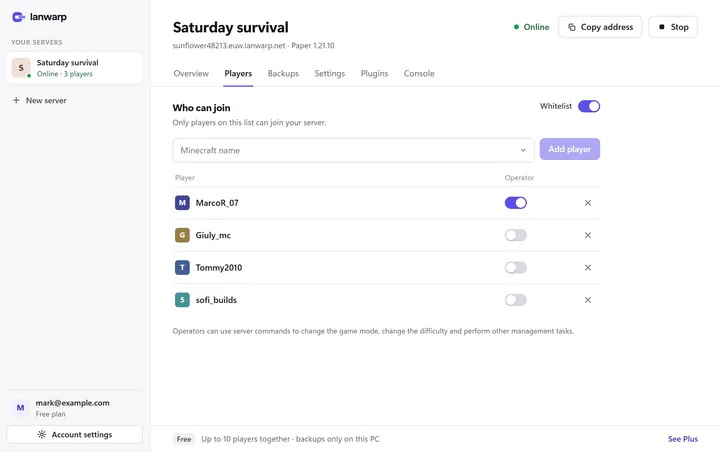
- Add your friends to the whitelist. New servers only let in the players you add. Add their Minecraft names in the Players tab.
- Share the address. Start the server and send the address to your friends. They add it in Multiplayer, like any other server.
The Free plan has 1 server and up to 10 players at once, with no time limit.
Tips for a good server
- Memory. LanWarp suggests a quarter of your PC’s memory, between 2 and 8 GB. More players and bigger worlds need more.
- Paper. Paper runs the same game as Vanilla with better performance, and it supports plugins.
- Plugins. On Paper servers you can install plugins from the catalog in one click, like EssentialsX, LuckPerms, CoreProtect, GriefPrevention and WorldEdit. Players don’t install anything.
- Backups. LanWarp makes a backup every time the server stops. You can restore any of them from the Backups tab.
- Discord. The LanWarp bot keeps a message in your Discord channel up to date with the server status and who is playing. See the Discord bot.
Common questions
How many friends can join?
Up to 10 players at once on the Free plan, and up to 100 on Plus and Pro.
Do my friends need the same Minecraft version?
Players join with the version of the server. With the ViaVersion plugin, players with newer versions can join too.
Can friends join when I’m not playing?
Yes, as long as your PC is on and the server is started. The server doesn’t need you in the game.
Can friends on Bedrock Edition join?
Not yet. Cross-play with Bedrock Edition will arrive in a coming update.