The main difference
playit.gg is a tunnel: a program that runs next to a game server you already have and makes it reachable from the internet. You set up the server yourself.
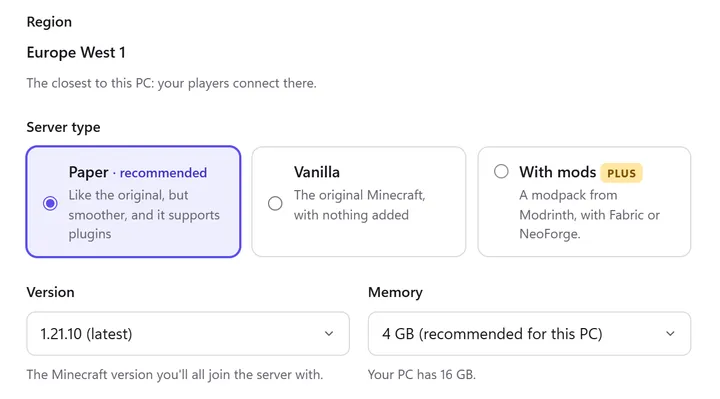
LanWarp is an app that does both. It creates the Minecraft server, downloads Java, starts the server and connects it to a LanWarp relay, so players can join with an address.
Side by side
| playit.gg | LanWarp | |
|---|---|---|
| What it is | A tunnel program | An app that creates and runs the server, with the connection built in |
| Setting up the server | You do it: Java, server files, EULA, start script | The app does it: Paper or Vanilla, Java and memory |
| Games | Minecraft Java and Bedrock, and other games | Minecraft: Java Edition |
| Systems | Windows, Linux and others | Windows 10 and 11 |
| Address | An address from playit.gg | A random address on the Free plan, or a name you choose on Plus and Pro, like castle.euw.lanwarp.net |
| Managing the server | Outside playit.gg, in the server files and console | In the app: whitelist, game settings, plugins, backups, version upgrades |
| Price | Free tier, paid plans from $3 a month | Free plan with up to 10 players. Plus and Pro are paid |
When playit.gg is the better choice
- You host other games, or Minecraft Bedrock Edition.
- You host from Linux or another system that LanWarp doesn’t support yet.
- You already run a server the way you like and only need the connection.
When LanWarp is the better choice
- You don’t want to install Java, download server files or write a start script.
- You want the whitelist, game settings, plugins and backups in one app, without editing files.
- You want a Discord bot that shows the server status and who is playing.
- You want the server and its connection to start together, from one place.
How to start with LanWarp
Download LanWarp, sign in and create a Paper or Vanilla server. The steps are in host a Minecraft server without port forwarding.